Silk Mobile
Table of Contents (Homepage)
- Overview
- Setting Up
- Getting Started
- How To
- Connecting Devices And Emulators
- Preparing Applications For Testing
- Managing Applications
- Recording Tests
- Working With Test Commands
- Adding Commands To Your Scripts
- Object Commands
- Click
- ClickCoordinate
- ClickIn
- ClickOffset
- Drag
- ElementGetProperty
- ElementGetTableRowsCount
- ElementListPick
- ElementListSelect
- ElementListVisible
- ElementScrollToTableRow
- ElementSendText
- ElementSetProperty
- ElementSwipe
- ElementSwipeWhileNotFound
- GetAllValues
- GetElementCount
- GetElementCountIn
- GetTextIn
- IsElementBlank
- IsElementFound
- IsFoundIn
- LongClick
- RunNativeAPICall
- SendWhileNotFound
- VerifyElementFound
- VerifyElementNotFound
- VerifyIn
- WaitForElement
- WaitForElementToVanish
- GetCoordinateColor
- DragDrop
- Application Commands
- Device Commands
- Web (Hybrid) Specific Commands
- Utilities Commands
- Monitoring Commands
- Configuration Commands
- ExtractLanguageFiles
- SetDefaultClickDownTime
- SetDefaultTimeOut
- SetDefaultWebView
- SetDragStartDelay
- SetInKeyDelay
- SetKeyToKeyDelay
- SetLanguage
- SetLanguagePropertiesFile
- SetShowImageInReport
- SetShowPassImageInReport
- SetShowReport
- SetSpeed
- SetThrowExceptionOnFail
- SetWebAutoScroll
- StartStepsGroup
- StopStepsGroup
- TextFilter
- Miscellaneous Commands
- Controlling Element Identification Rules
- Editing Test Objects
- Executing Test Scripts
- Report Of Executed Test
- Working From Code Environment
- Continuous Integration
- Layout Verification Tests
- Use Device Vitals Monitors
- Troubleshooting
- Terminology
IBM RFT
You can run Silk Mobile scripts from IBM Rational (RFT). To do so, perform the following steps:
Step 1: Create a new Functional Test Project
Step 2: Set the project classpath:
-
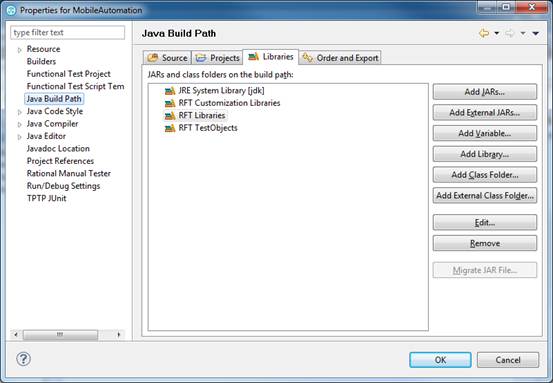
Open the project properties (right-click on the project)
-
Select 'Java Build Path' and then the 'Libraries' tab:
-
Click on 'Add External JARs…
-
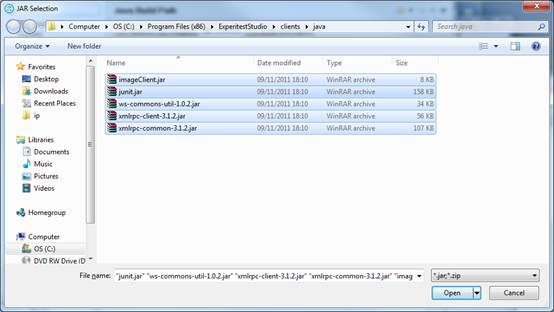
In the Silk Mobile installation directory under client\java select all the JARs ( C:\Program Files\Silk\SilkMobile)
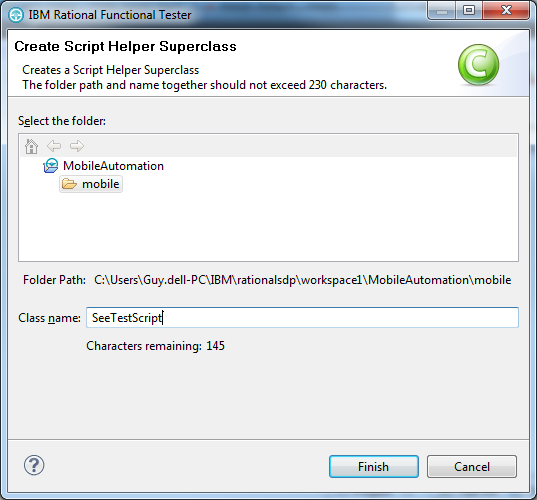
Step 3: Create Helper Superclass:
-
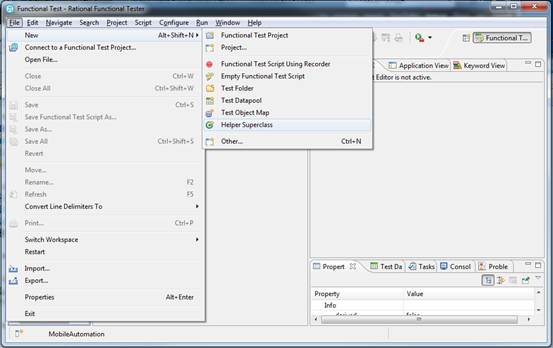
Go to File -> New -> Helper Superclass
-
Name the Superclass Silk Mobile Script and put it under a folder named 'mobile':
-
Paste the code found under client\RFT\SeeTestScript.java file into the new Superclass
-
Change the name of the first package from 'Resources' to the 'mobile'.
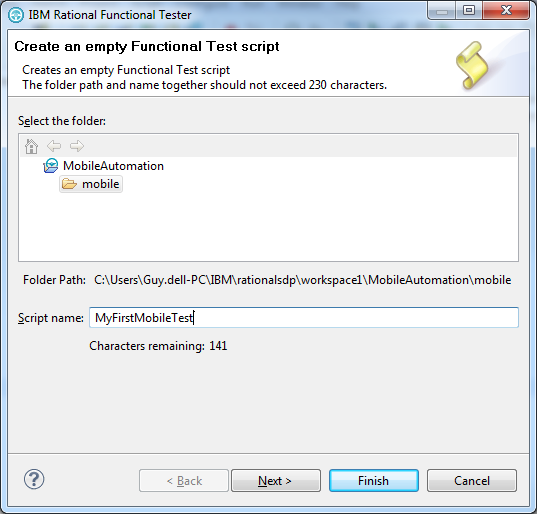
Step 4: Create a new Test
-
Right-click on the test folder and select 'Add Empty Script', set the script name and click Next.
-
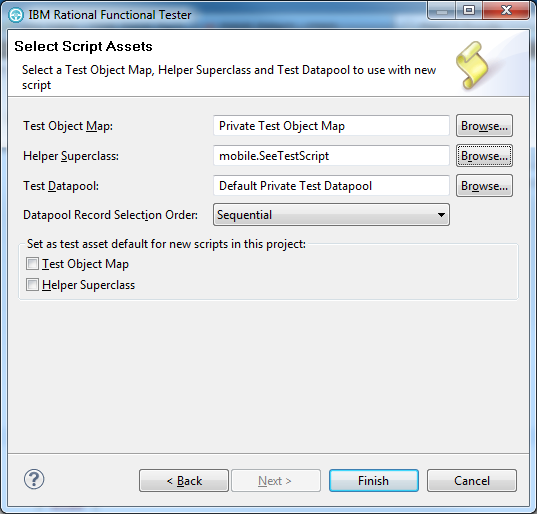
Set the 'Helper Superclass' to the new superclass:
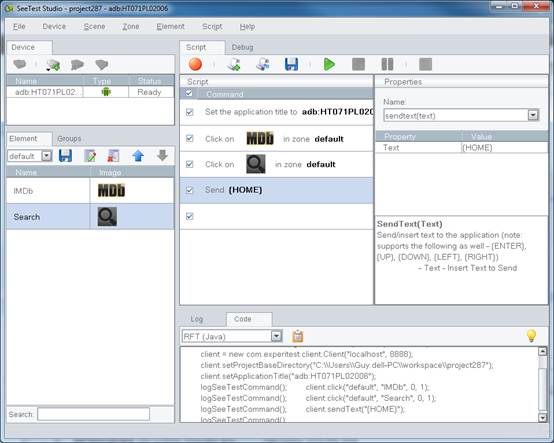
Step 5: Export code and Run script
-
In Silk Mobile select 'RFT' as the code export environment and copy the script code:
-
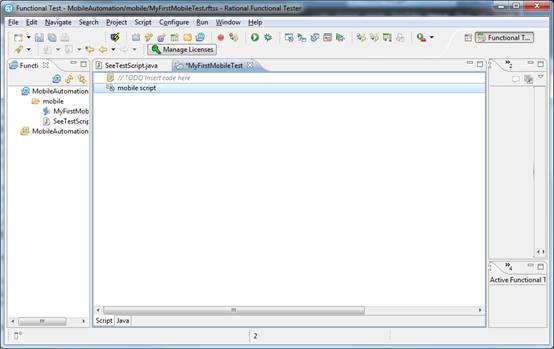
In RFT, in the newly created script right-click and select 'Insert Java Code Snippet'. You can set the name of the snippet
-
Save the script.
-
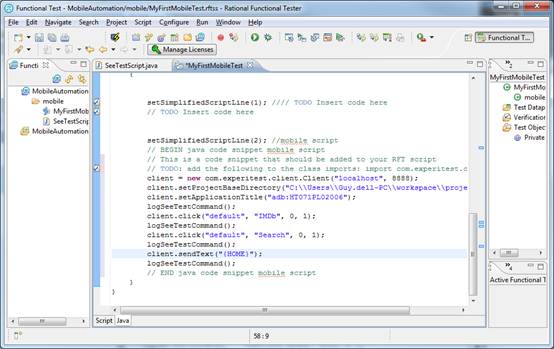
In the new script move to the 'Java' tab and paste the Silk Mobile-generated code into the ‘Add your code here’ location.
-
Now you can run the test from RFT.
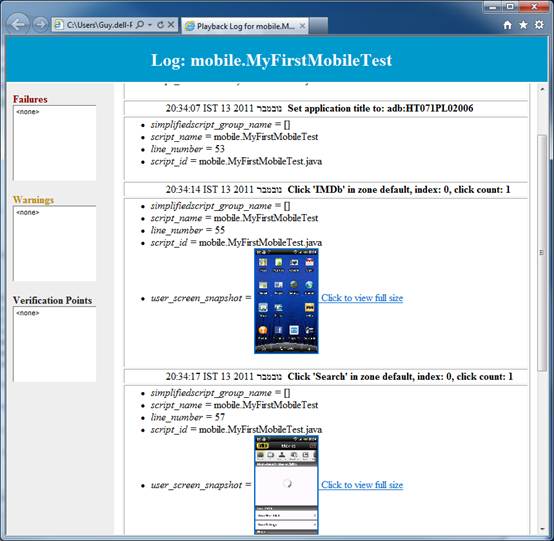
Step 6: After the execution finishes you should see the RFT html log with the Silk Mobile commands information: